CareApp Roles | Account Types & Permissions

Written by Georgia Radcliffe
Updated at January 9th, 2026
CareApp uses role types to control what each user can see and do in relation to Customer profiles and app features. The higher the role’s access level, the more functions the user can perform.
Below is a breakdown of each role and a summary of their capabilities — ideal for when you’re inviting team members or changing roles.
CareApp Roles & Permissions
Select from the roles below:
Customer (Self)
This account type is purely for the care recipient themselves, so they can interact and create posts on their profile.
| Permission | Can Do |
|---|---|
| View own feed and posts | ✅ |
| Access wellbeing checks, documents, and links * | ✅ |
| Create and post wellbeing checks, documents, links | ✅ |
| Comment on posts and interact with others | ✅ |
| View other customers’ info | ❌ |
| Moderate or manage community | ❌ |
* Customers can access wellbeing checks, documents, and links only if they have been selected as a recipient.
What does CareApp look like for a Customer (Self) Account?
Home page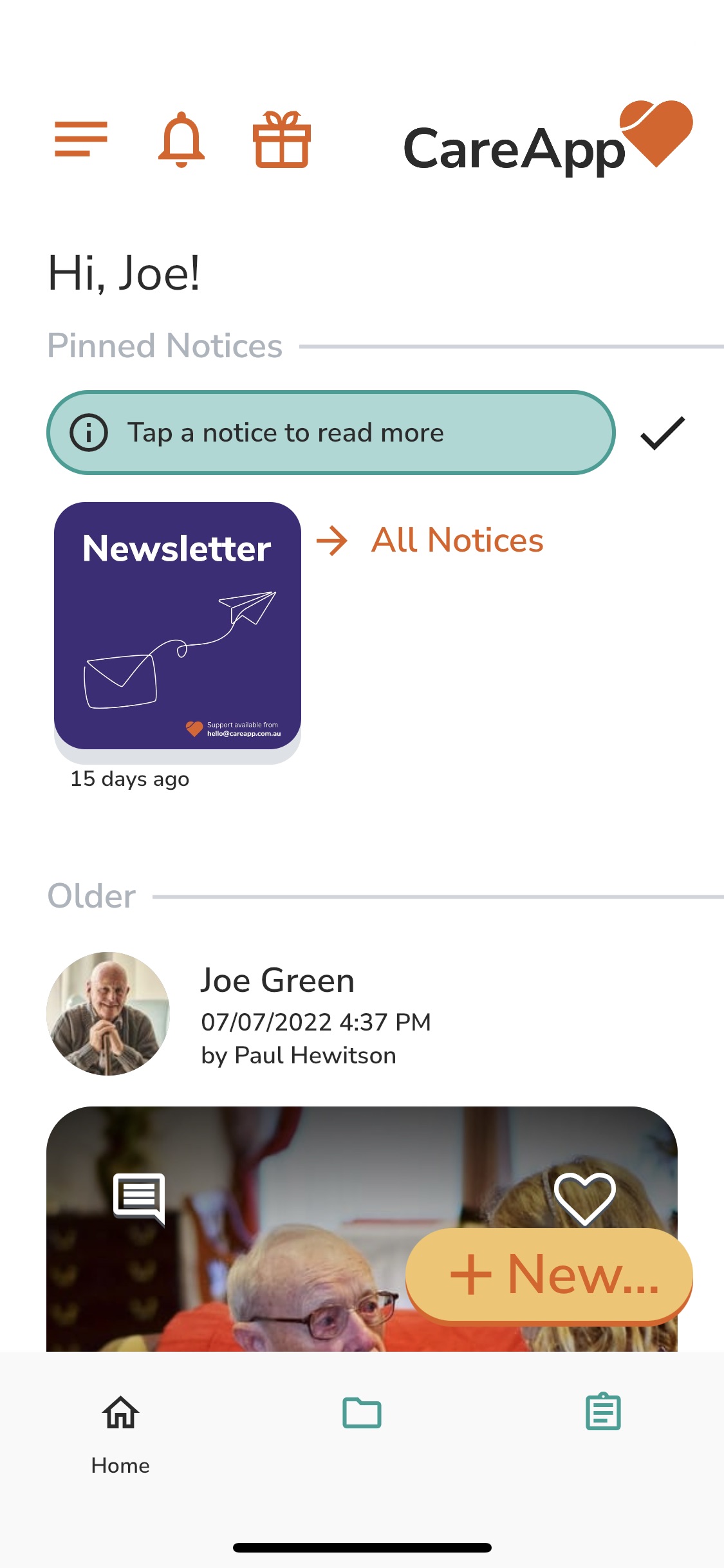
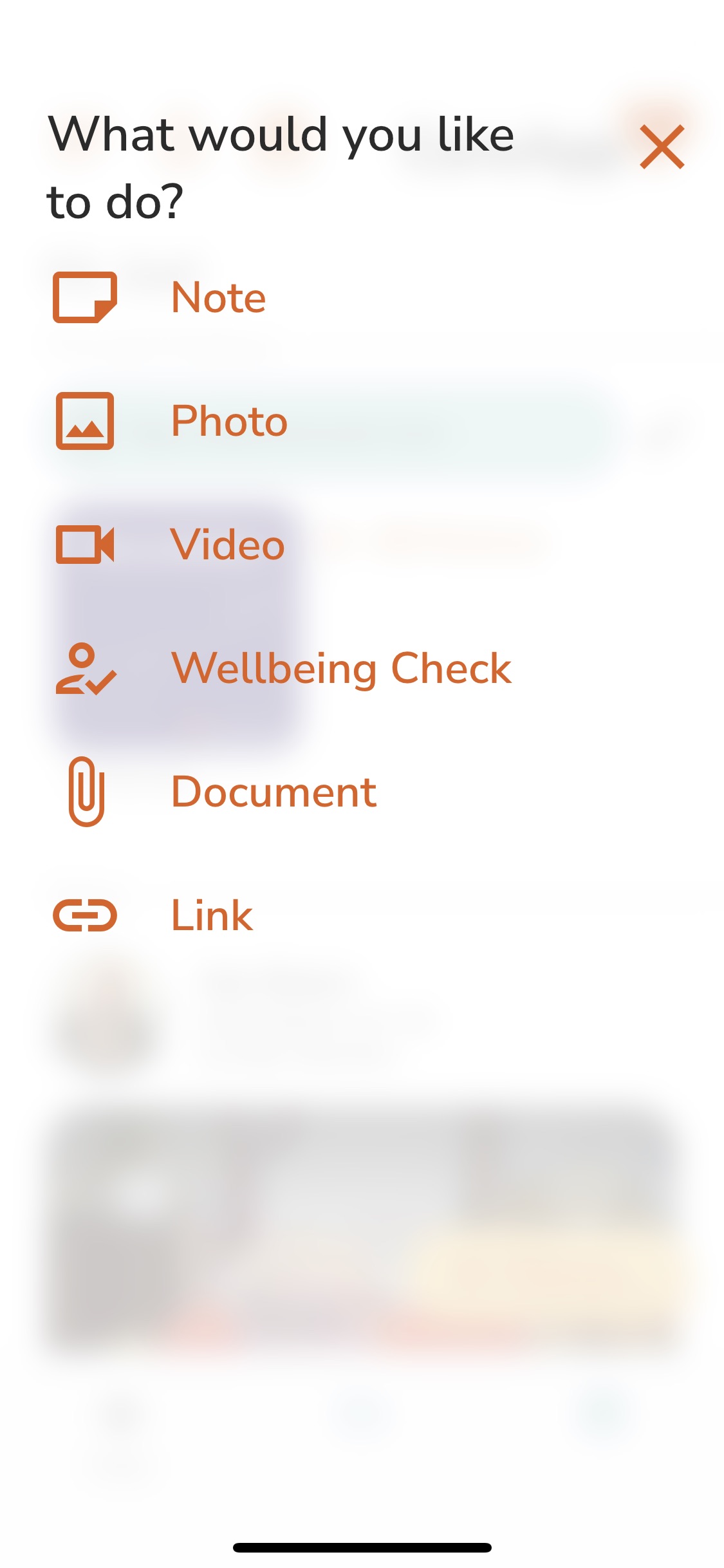
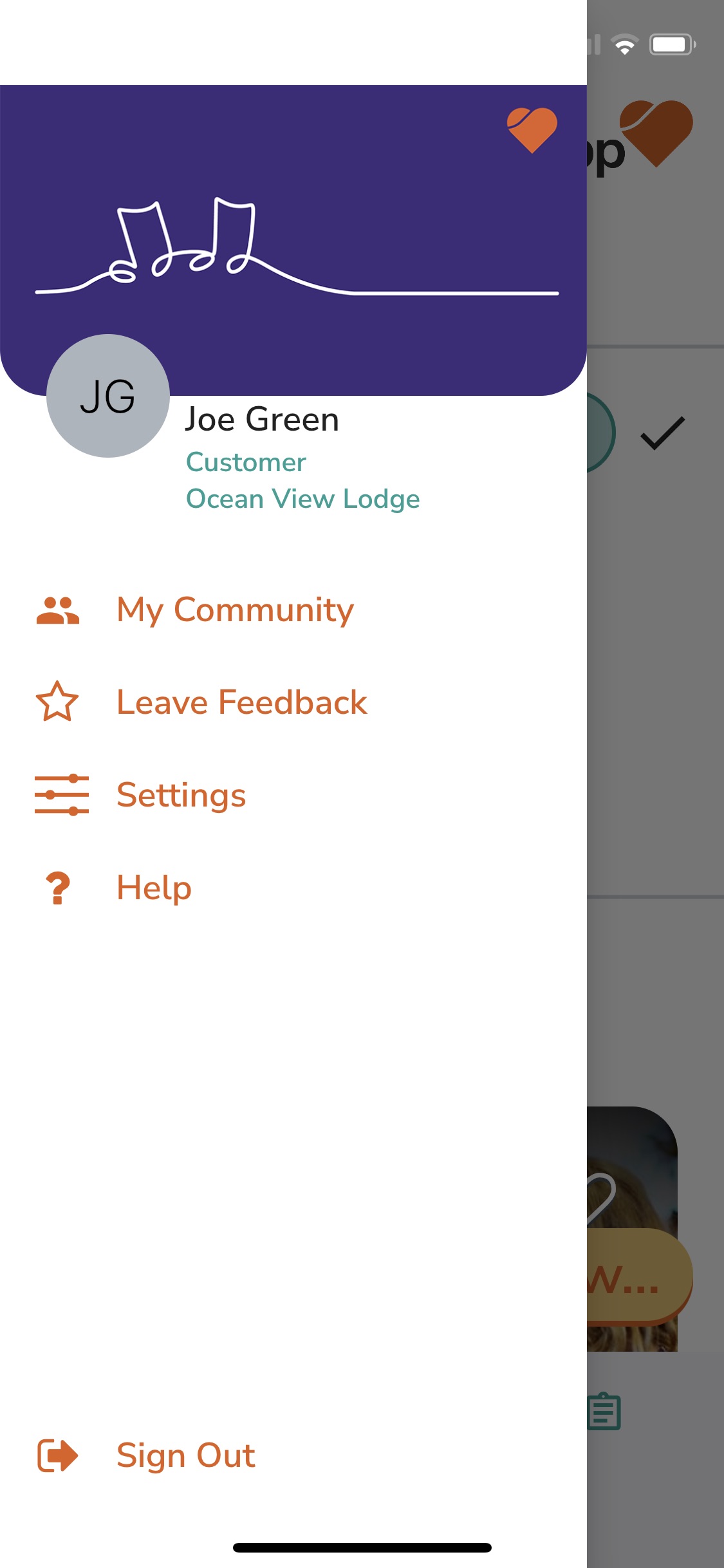
Family Follower
The Family follower role in CareApp allows relatives of a care recipient to stay connected and engaged without having full access to additional care-related information such as wellbeing checks, documents, and links
Family roles are assigned per customer profile, meaning a family member can only see the profile(s) they are specifically connected to. Both roles can receive video chats and engage with posts.
For more details on family roles, see Guide to Family Representative & Family Follower Roles.
1. Family Follower
| Permission | Can Do |
|---|---|
| View posts, photos, videos, notes on connected profile(s) | ✅ |
| View notices that include them as a recipient | ✅ |
| Heart/react to posts | ✅ |
| Comment on posts | ✅ |
| Receive video chats | ✅ |
| View wellbeing checks, documents, links | ❌ |
| Create posts | ❌ |
| Invite other family members | ✅/❌* |
* Ability to invite other family members depends on provider settings.
DeleteFamily Representative
Family Representatives are family members who are actively involved in a care recipient’s support. Unlike Family Followers, they can access additional care-related information such as wellbeing checks, documents, and links (but only if they have been added as a recipient).
This role is ideal for family members who need more insight into the care of their loved one while still maintaining privacy and restricted access.
For more details on family roles, see Guide to Family Representative & Family Follower Roles.
| Permission | Can Do |
|---|---|
| View posts, photos, videos, notes on connected profile(s) | ✅ |
| View notices that include them as a recipient | ✅ |
| Heart/react to posts | ✅ |
| Comment on posts | ✅ |
| Receive video chats | ✅ |
| View wellbeing checks | ✅ |
| Access documents and links (if recipient) | ✅ |
| Create posts | ❌ |
| Invite other family members | ✅/❌* |
* Ability to invite other family members depends on provider settings.
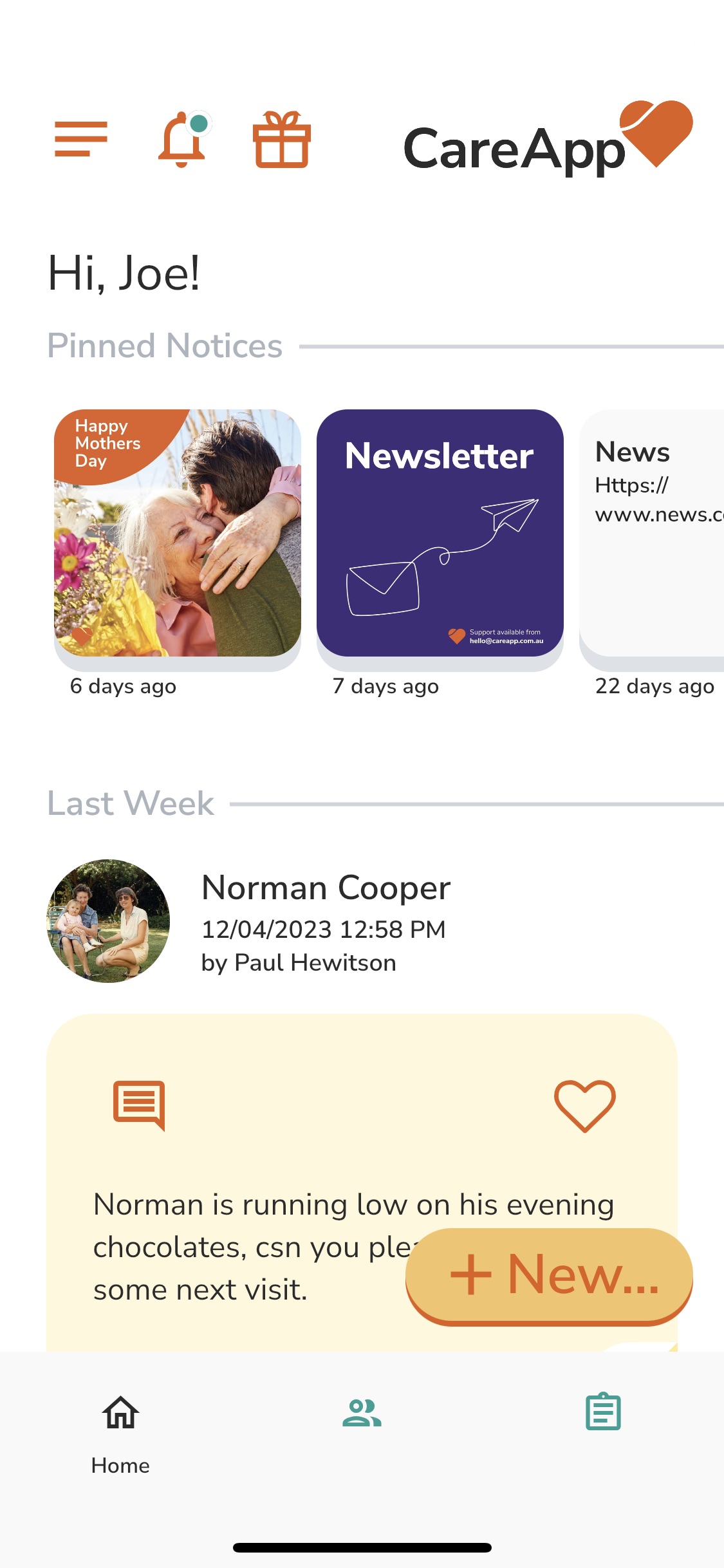
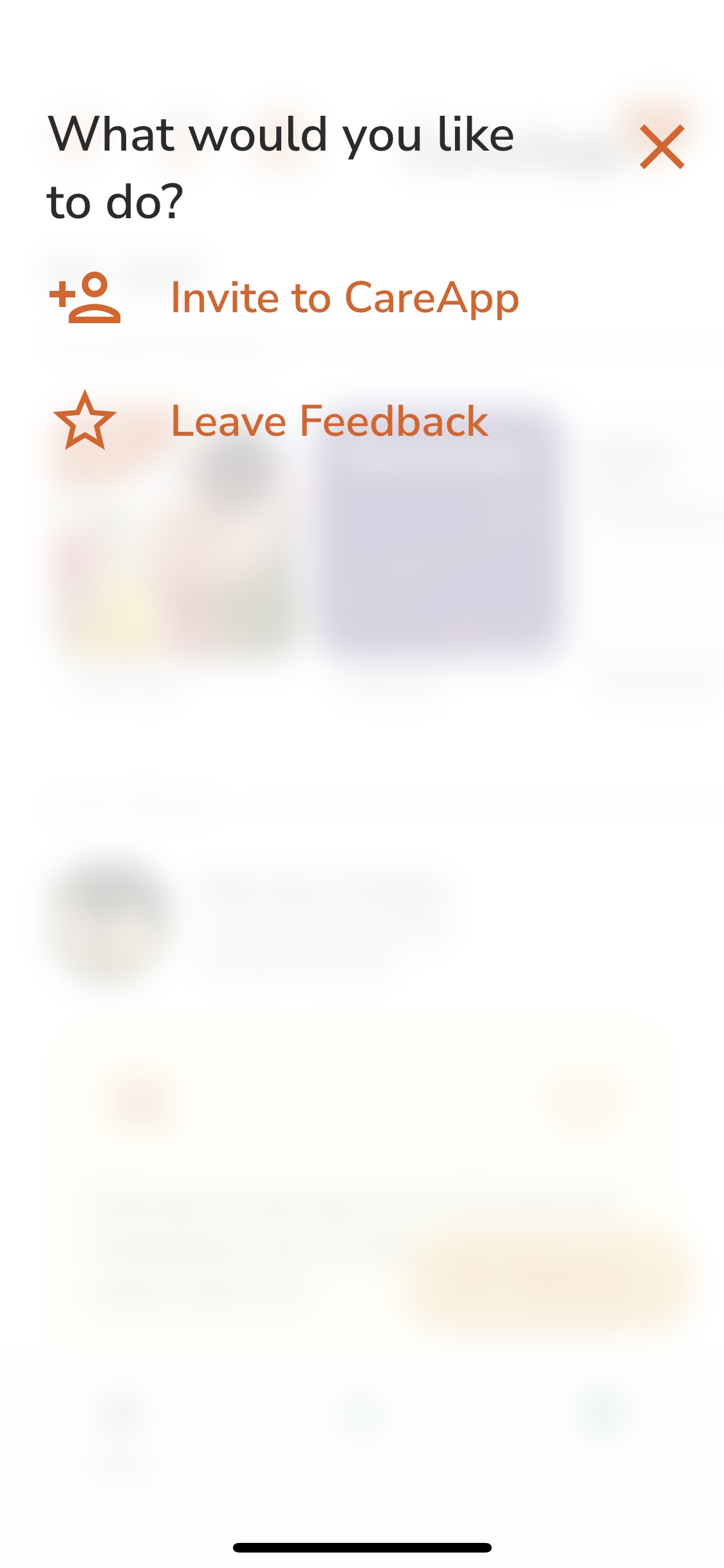
What does CareApp look like for a Family Representative?
Home page
Team Member
The Team Member role is a general staff account for any team or staff members who want to create posts, connect with customers, and engage with what’s happening at the site. This role is ideal for staff, volunteers, or support workers who need access to customer profiles and site content but do not share posts directly with family.
All posts created by Team Members must be approved by a Site Coordinator before they are visible to family members. This gives you the freedom to invite almost any staff member without worrying about mistakes or inappropriate posts being shared externally.
| Permission | Can Do |
|---|---|
| Create posts, photos, videos, notes | ✅ |
| Share posts with family | ❌* |
| View customer profiles | ✅* |
| Comment on posts | ✅ |
| Heart/react to posts | ✅ |
| Create video chats | ✅ |
| Access documents and links (if recipient) | ✅ |
| Be part of the community | ✅ |
| Receive notices (if selected as recipient) | ✅ |
| Create notices | ❌ |
| Post links or documents | ❌ |
| Create wellbeing checks | ✅ |
| Invite team members or family members | ❌ |
* Conditional permissions:
Share posts with family: Posts must be approved by a Site Coordinator before being visible to family.
View customer profiles: Can be limited to specific profiles, or set to access all customers (common setting is full access).
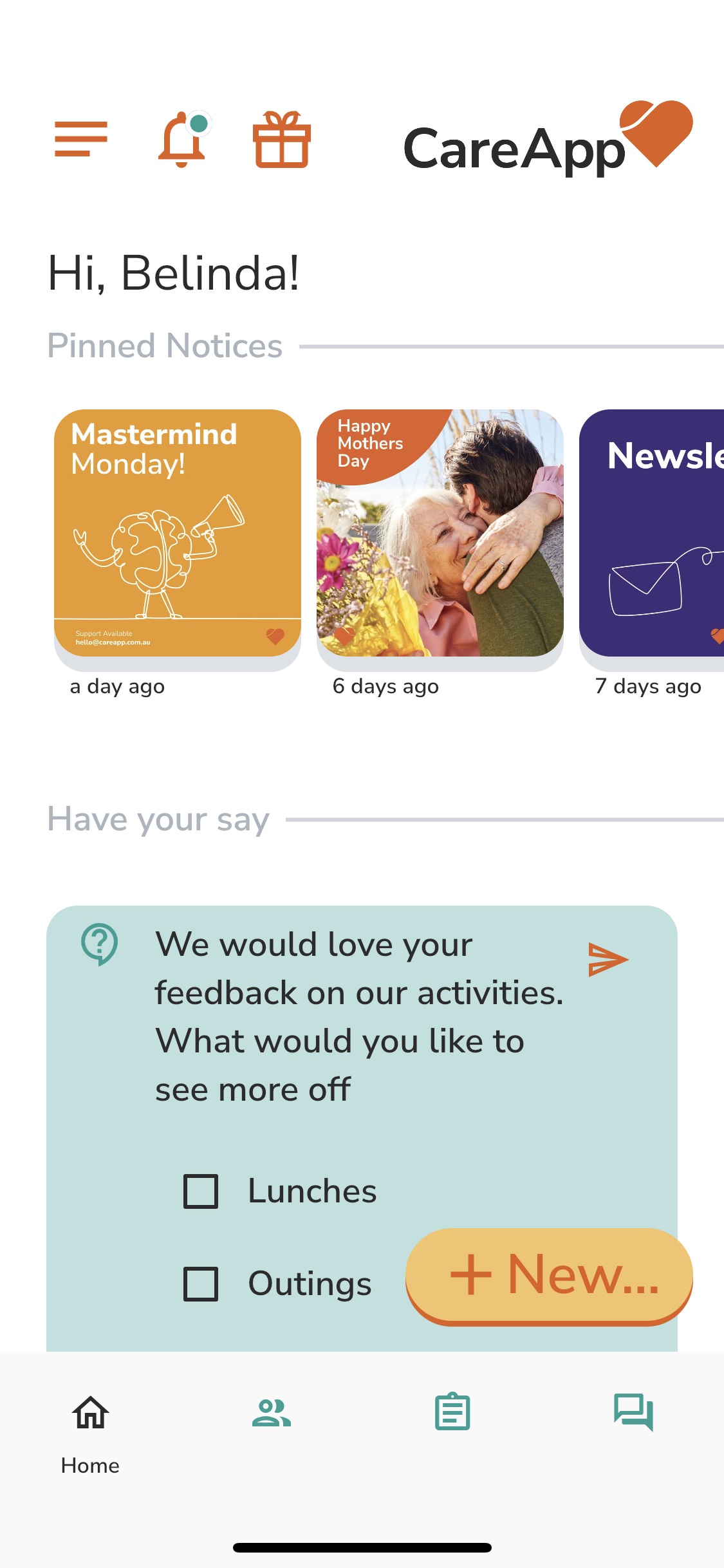
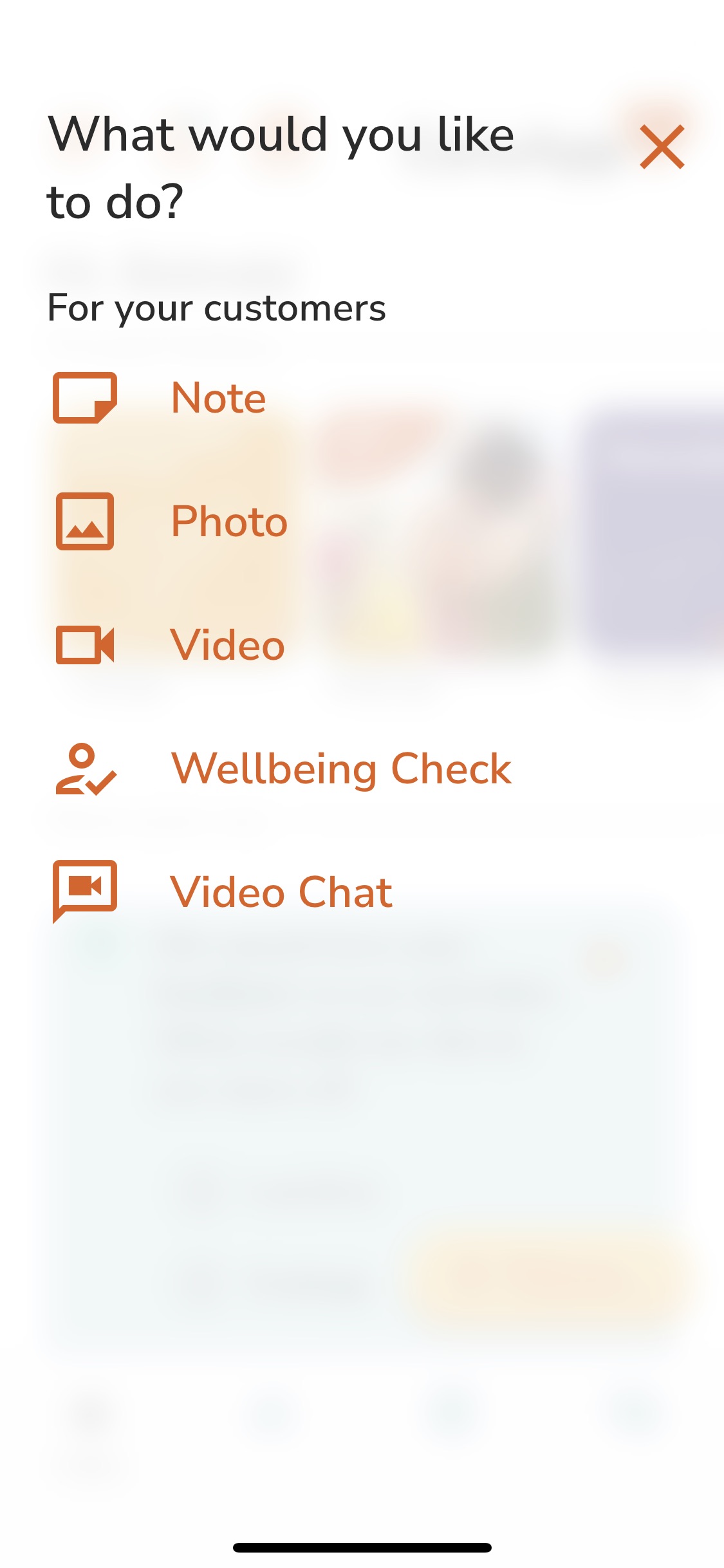
What does CareApp look like for a Team Member?
Home page
Site Coordinator
Site Coordinators have the highest level of access at a site level. This role is ideal for team leaders or CareApp Champions who manage content, oversee staff, and moderate activity at their site.
Site Coordinators can do everything a Team Member can do — create posts, comment, heart/react, access customer profiles, and create wellbeing checks — plus they can share posts with families, moderate content, manage members, and access site-level insights and reports.
For more details, see the Guide for CareApp Champions.
| Permission | Can Do |
|---|---|
| Create posts, photos, videos, notes | ✅ |
| Share posts with family | ✅ |
| View customer profiles | ✅ |
| Comment on posts | ✅ |
| Heart/react to posts | ✅ |
| Create video chats | ✅ |
| Access documents and links (if recipient) | ✅ |
| Be part of the community | ✅ |
| Receive notices (if selected as recipient) | ✅ |
| Create notices | ✅ |
| Create question posts | ✅ |
| View insights dashboard | ✅ |
| Export site reports | ✅ |
| View feedback from family | ✅ |
| Manage members (invite, role change, deactivate accounts) |

Provider Administrator
Provider Administrators have the highest level of access across all sites within a provider. This role is ideal for organisational leaders or CareApp Champions who manage multiple sites and need provider-wide oversight.
Provider Administrators can do everything a Site Coordinator can do at a site level — create posts, moderate content, manage members, share posts with families, access customer profiles, and view insights — but they can perform these actions across all sites.
In addition, Provider Administrators have access to the Administration menu, where they can:
View provider-level insights for all sites together
Manage customers, members, and notices at a provider level
Export reports covering all sites in one file
For more details, see:
| Permission | Can Do |
|---|---|
| Everything a Site Coordinator can do | ✅ |
| Access all customer profiles across all sites | ✅ |
| Share posts with family across all sites | ✅ |
| Comment on posts | ✅ |
| Heart/react to posts | ✅ |
| Create video chats | ✅ |
| Access documents and links (if recipient) | ✅ |
| Be part of the community | ✅ |
| Receive notices (if selected as recipient) | ✅ |
| Create notices | ✅ |
| Create question posts | ✅ |
| View insights dashboard for all sites | ✅ |
| Export provider-level reports | ✅ |
| View and manage customers at provider level | ✅ |
| View and manage notices at provider level | ✅ |
| View and manage members at provider level | ✅ |