Care Provider: How to Invite Family Members
Learn how to invite family members to a CareApp community.

Written by Georgia Radcliffe
Updated at January 9th, 2026
Inviting family members to CareApp helps build a strong and connected care community. When families are included, they can stay informed, feel reassured, and engage more meaningfully with their loved one’s care.
Who Can Invite Family Members?
The following roles can send invitations to family members:
Site Coordinators
Provider Administrators
Family roles (if permitted by provider)
How to Invite a Family Member to CareApp
Mobile
1. Navigate to the Customers tab.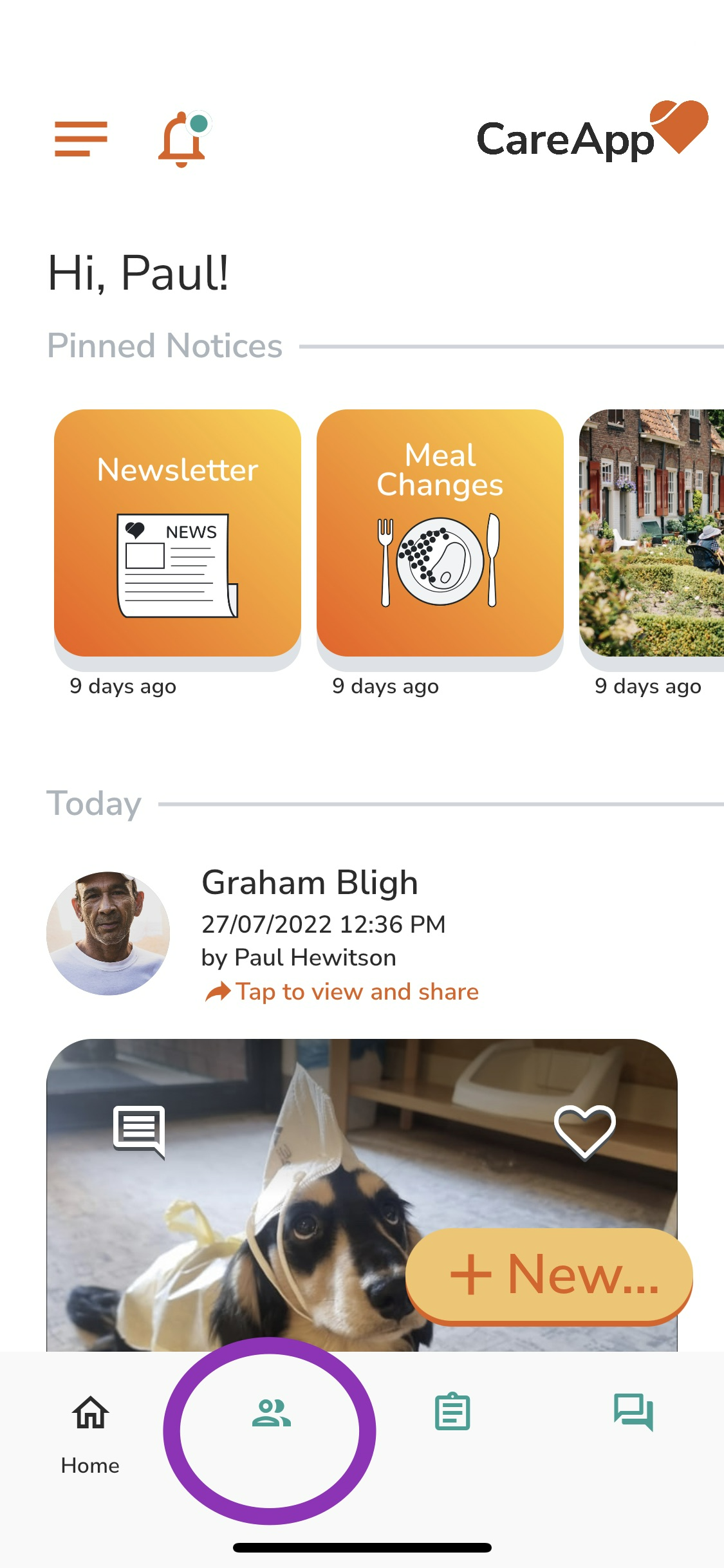
2. Search for the Customer’s name by entering it in the Filter search bar or scroll through the Customer list.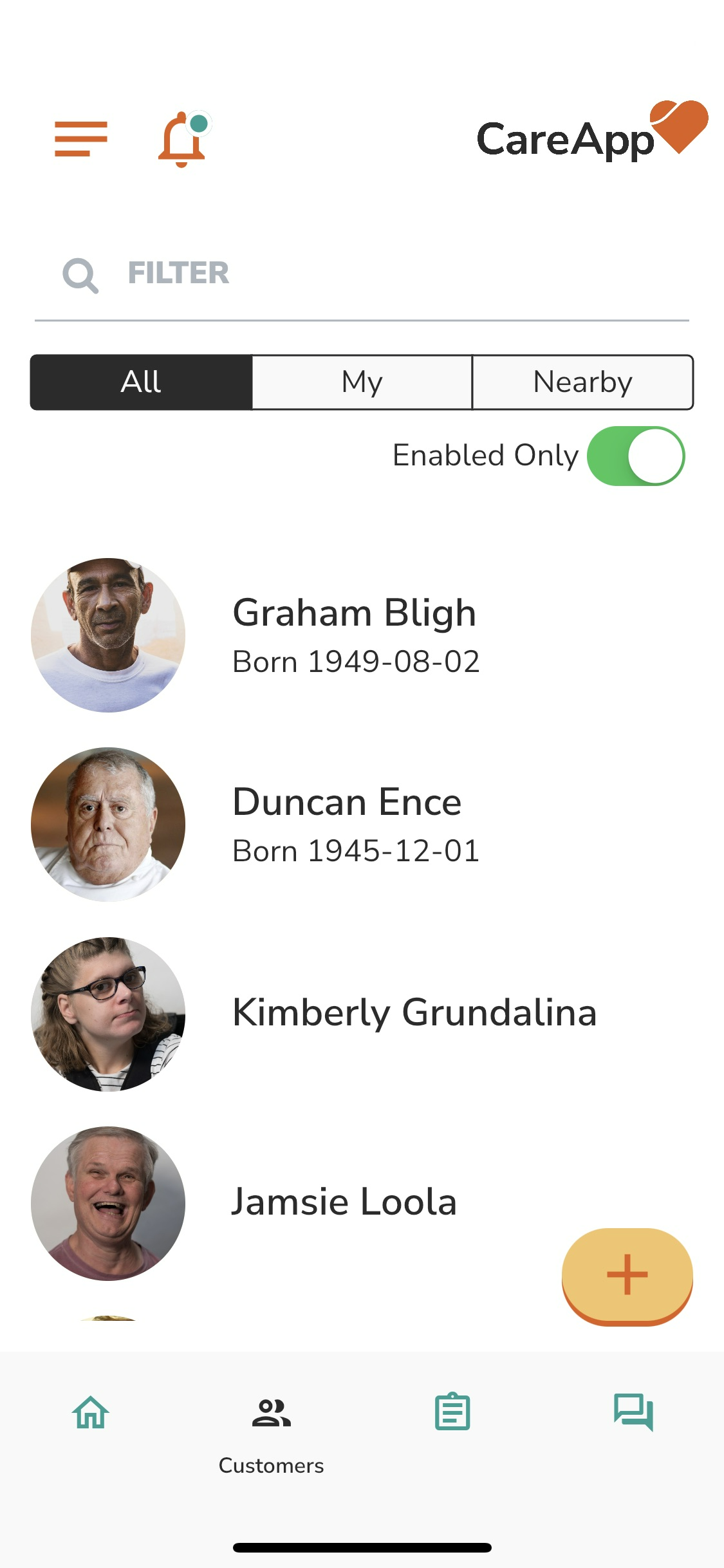
3. Tap on the Customer's name to open their profile.
 4. Tap the Community tab.
.png)
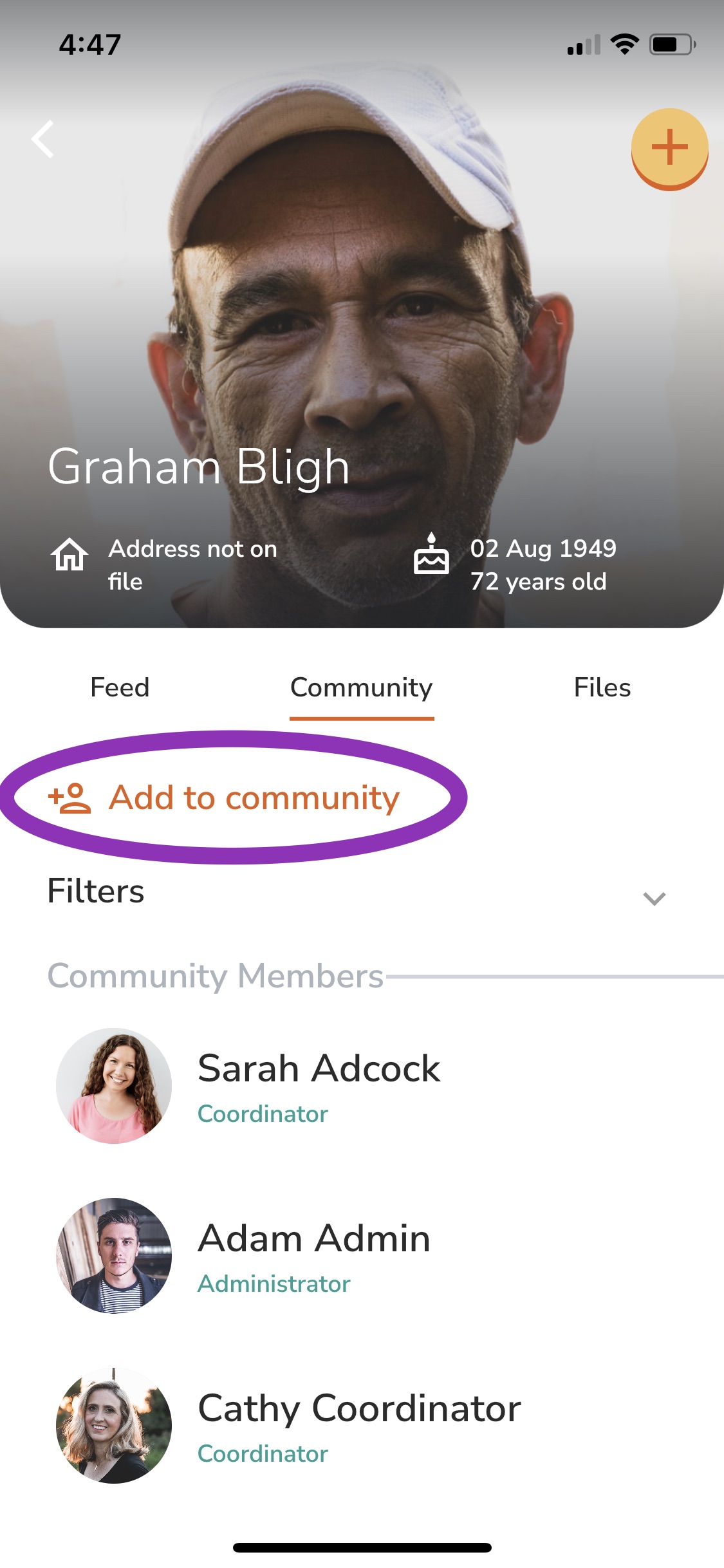
6. Enter the Family member’s email address.
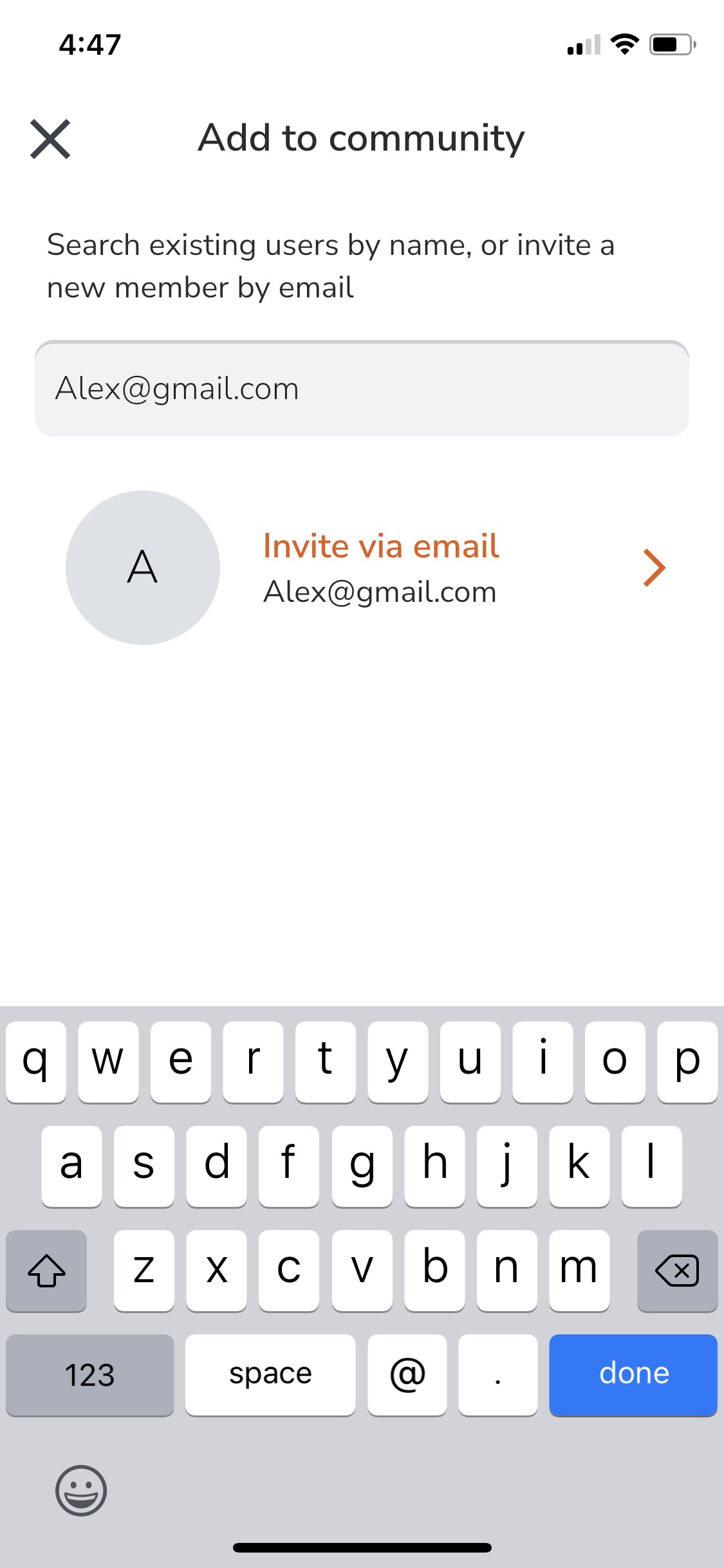 7. Tap Invite via email.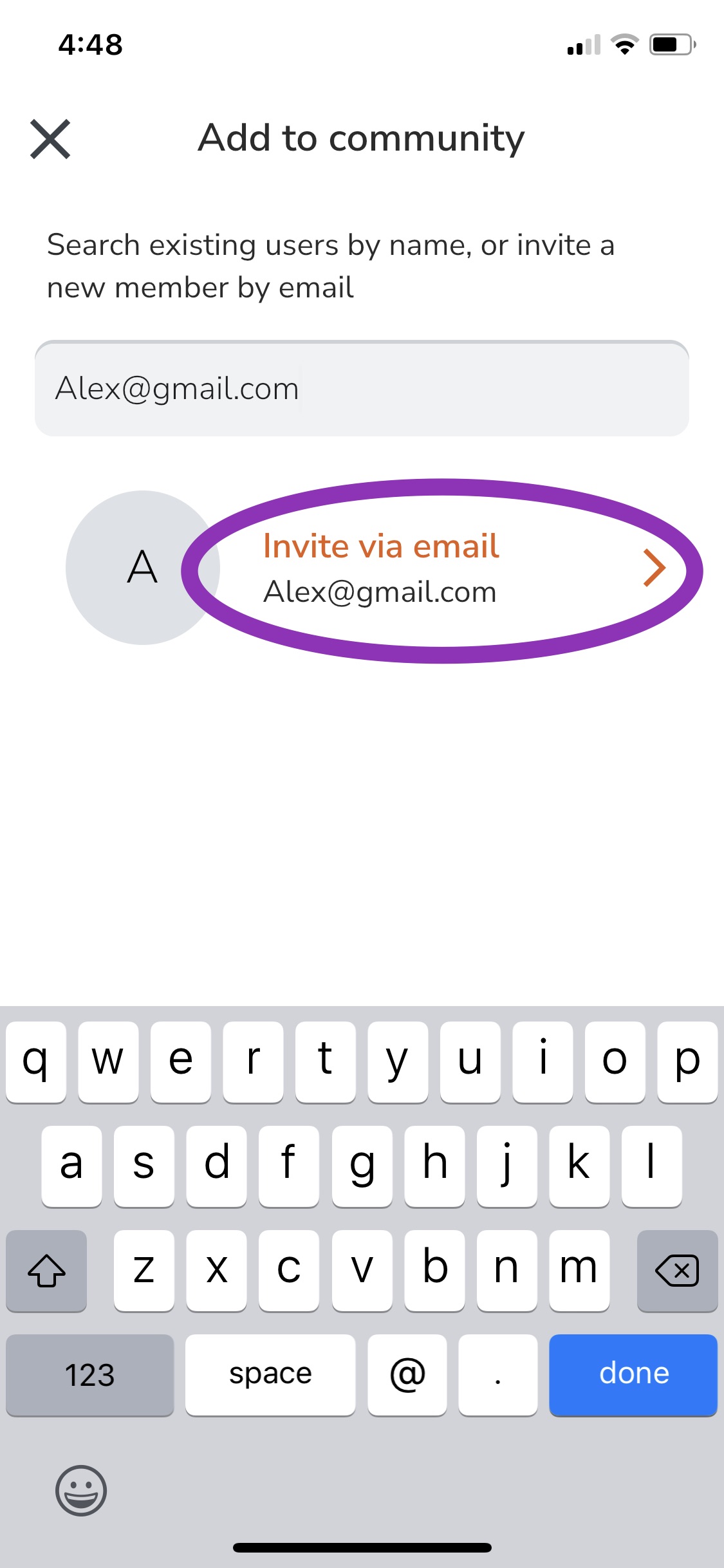
8. Select the role type and then tap Add to community.
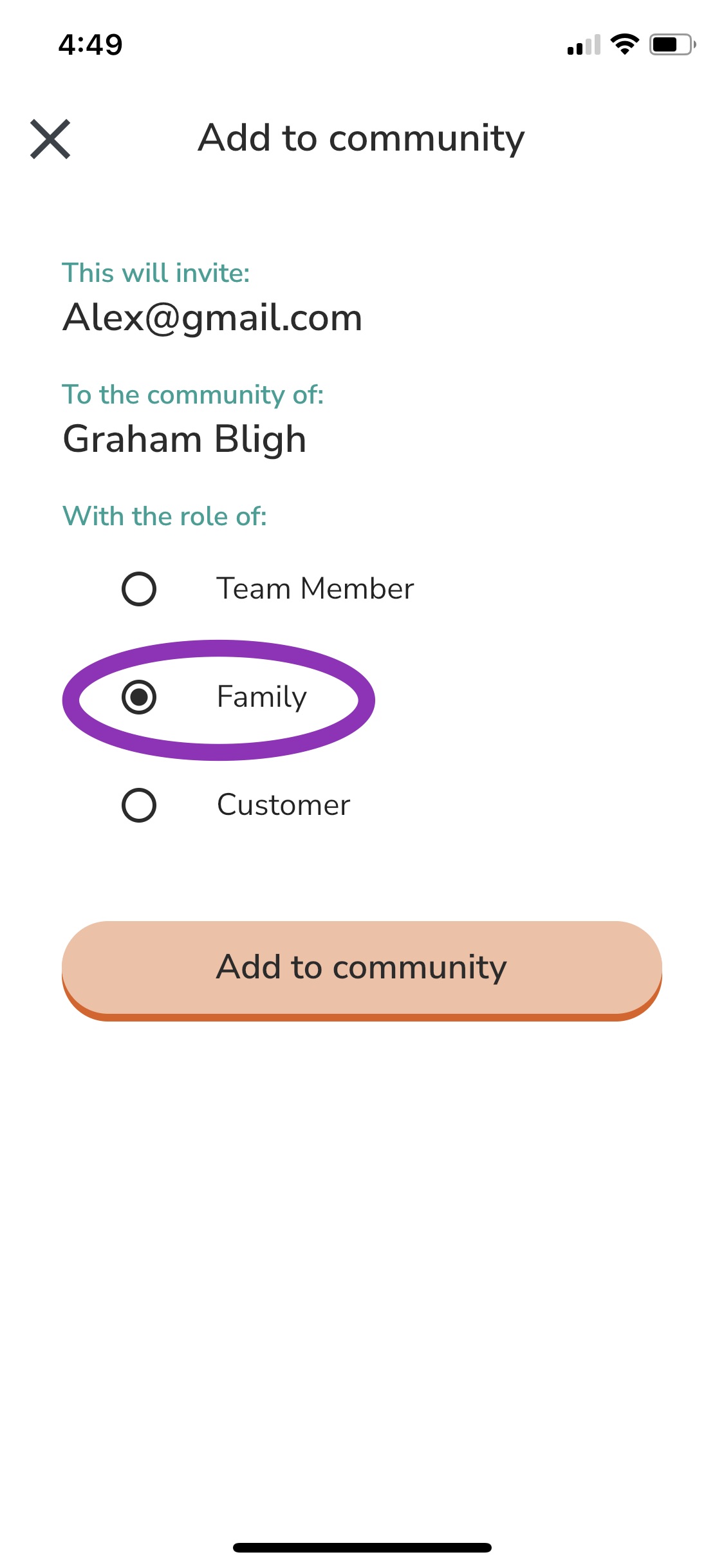
Invitation Sent!
Web
Navigate to the Customers tab in the left-hand menu.

Search for the customer by name using the Filter search bar.

Click on the Customer’s profile.
Click the Community tab.

Click Add to community.

Enter the Family member’s email address.

Select the role type.
Click Invite User.
Invite Family at Any Time (We Recommend Inviting Everyone)
You can invite family members to CareApp at any stage — whether you’re just getting started or adding more people over time.
We recommend inviting all family contacts you have on file, even if they haven’t specifically requested access. Family members can choose whether or not to join by accepting the invitation email.
Why this works well:
Families can opt out by simply ignoring the invitation
It helps avoid delays or missed connections later
It supports inclusion and transparency for families
If you’re inviting multiple family members at once, you may wish to follow up with a general email letting families know to expect a CareApp invitation and what it’s for.
You can also use CareApp’s ready-made communication resources, posters, and templates to support this:
👉 Care Provider: Promoting CareApp to Family
Inviting Family as You Go
You can invite family members to CareApp at any time — there’s no “right” or “wrong” stage to do this. Many providers invite family gradually as details become available or as relationships evolve.
You might invite family members:
When new contact details are provided
When a family member asks for access
When care arrangements or involvement change
Simply follow the same invitation steps above whenever you’re ready.
Can Family Members Invite Other Family?
Whether family members can invite other relatives is an organisation-level setting.
By default:
Family members cannot invite other family members
If this setting is enabled:
Family members can easily invite additional relatives themselves
They can invite as many family members as they like
This helps reduce administration and removes bottlenecks for staff
Many providers still choose to invite family directly, especially during initial setup, and then use this setting as an ongoing option to support families as their networks grow.
If you’d like this setting enabled or changed, contact CareApp Support, and we can update this for your organisation.
For Family Members: How to Invite Other Family
If this feature is enabled, families can follow this guide:
👉 How Do I Invite My Family Member to CareApp? (Guide for Family)
FAQ
Do family members need to accept the invitation?
Yes. A family member must accept the email invitation to create their CareApp account.
DeleteWhat if a family member doesn’t want to join?
They can simply ignore the invitation email. No account is created unless they accept.
DeleteCan we resend an invitation?
Yes. You can resend an invitation at any time if a family member missed or deleted the original email.
This is done in the members tab - invitaitons page or on the customer profile - community.
DeleteWhat if my family invitation isn’t working?
Family invitations should work if you have entered a valid email address for the recipient. If a family member isn’t receiving their invitation, here’s what to check:
Ask them to check their spam or junk folders.
-
Resend the invitation if it still hasn’t arrived:
-
On CareApp Web (computer):
Go to the Members tab.
Open the Invitations page.
Find the invitation and click Resend.
-
Alternatively:
Go to the Customer Profile they were invited to.
Open the Communities tab and scroll to the bottom to see all pending invitations.
You can also search for them in the Members tab.
-
-
Check if the invitation has already been accepted.
Sometimes family members forget or don’t realize the setup is complete. Searching in the Members tab can confirm if they already have an active account.
-
Email delivery issues.
In rare cases, a family member’s email provider may have blocked or bounced the invitation.
If the family still cannot access their invitation after these steps, contact CareApp Support for assistance.
DeleteHow Many Family Members Can Be Added to a Customer Profile?
You can invite unlimited Family members to a Customer’s profile. There is no limit!
DeleteWhat Posts Will Family See?
Family members will only see posts that are:
Shared with them by the Provider Administrator or Site Coordinator.
Related to their loved one(s) they’re connected to on CareApp.
How to See Who Can See Posts on CareApp
Go to the Customer Profile via the Customers tab.
Click on Communities.
Scroll to Community Members — this list shows all staff, Family, and Customer accounts who can see posts for that Customer profile.
Why invite Family to CareApp?
CareApp provides a personalised and reassuring window into the care and wellbeing of your loved ones.
It allows families to stay connected, even with geographical challenges and busy lives, through secure and private communication.
With CareApp, care providers can easily share:
Messages, photos, and videos
Documentation, notices, and events
Newsletters and updates
This enhances communication, ensuring families are involved with their loved one’s care — it’s simply beautiful care.
Delete