US English (US)
ES Spanish
MX Spanish (Mexico)

Contact Us

If you still have questions or prefer to get help directly from an agent, please submit a request.
We’ll get back to you as soon as possible.

Please fill out the contact form below and we will reply as soon as possible.

  • Contact Us
English (US)
US English (US)
ES Spanish
MX Spanish (Mexico)
  • Home

Receiving a Slideshow Memorial Video: What Families See

Learn how family can view, save and share Memoial Slideshow Videos

Written by Georgia Radcliffe

Updated at February 2nd, 2026

Contact Us

If you still have questions or prefer to get help directly from an agent, please submit a request.
We’ll get back to you as soon as possible.

Please fill out the contact form below and we will reply as soon as possible.

  • Care Providers
    Providers: Getting Started Providers: Building your community Providers: Using CareApp Providers: Insights
  • Family & Friends
    Family: Getting Started Family: Building your community Family: Using CareApp
  • Care Recipients
  • Technical information
  • Resources
  • Community
+ More

What do families see when they are sent a slideshow video?

When a customer profile has been archived, family members connected to the profile will receive an email notification letting them know a slideshow video is available.

The email will include a “View video” button, which allows families to access, save and share the slideshow video via their computer or mobile device.
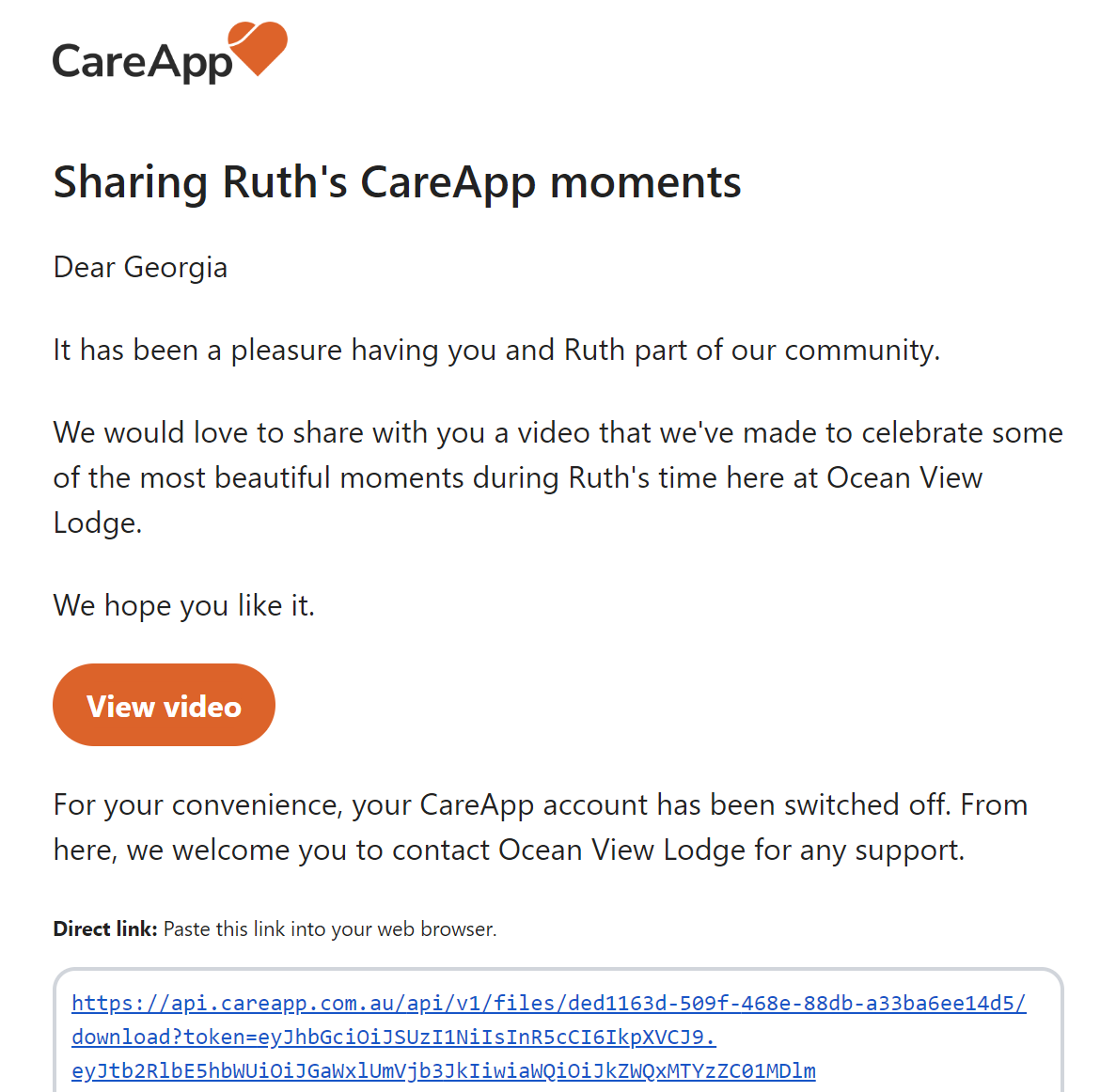

Viewing and saving the slideshow video

Simply clicking “View video” will allow the family access to view and save the video.

Depending in thier device, browser and settings, the video will automatically download onto their device or open up in a preview window.

Option 1: Video automatically downloads (most common)

  • The video will automatically download onto the family member’s device.

  • A download notification may appear in their browser or device downloads folder.

  • Once downloaded, the video can be opened, watched, and kept permanently.

  • The video will usually be saved in Recent Downloads or the device’s Downloads folder.

Delete

Option 2: Video opens in a new browser tab

  • The video may open in a new browser tab instead of downloading.

  • From here, the family member can click the Download button on the video player to save it to their device.

Delete


Delete

Email expiry after 90 days:

Please note: the email link will expire, so we recommend families download and save the slideshow video to their device as soon as they receive it so they can keep it permanently.


Sharing the slideshow video with others

Family members can easily share the slideshow video with others by:

  • Forwarding the original email to another email address

  • Copying and sharing the video link

Anyone who receives the link or forwarded email can view and download the video in the same way.


Example slideshow video:


Need help?

If families experience any issues accessing or downloading the slideshow video, please contact CareApp support at hello@careapp.com.au


customer profile family memory

Was this article helpful?

Yes
No
Give feedback about this article

Related Articles

Suite 7
Stone & Chalk
at Lot Fourteen
North Terrace
Adelaide SA 5000
Linkedin Instagram Facebook
  • Join CareApp
  • Nominate your care provider
  • Resources
  • Welcome
  • Meals on Wheels
  • Integrations
Menu
  • Join CareApp
  • Nominate your care provider
  • Resources
  • Welcome
  • Meals on Wheels
  • Integrations
  • Articles
  • Media Assets
  • Testimonials
  • Team
  • Jobs
Menu
  • Articles
  • Media Assets
  • Testimonials
  • Team
  • Jobs
  • Product Updates
  • Status
  • Contact Us
  • Copyright
  • Privacy Policy
  • Terms of Service
Menu
  • Product Updates
  • Status
  • Contact Us
  • Copyright
  • Privacy Policy
  • Terms of Service

Knowledge Base Software powered by Helpjuice

Definition by Author

0
0
Expand